> ## Documentation Index
> Fetch the complete documentation index at: https://dripart-chore-sync-comfy-api-v2-spec-12fd5b4.mintlify.site/llms.txt
> Use this file to discover all available pages before exploring further.
# ComfyUI MoGe Examples
> This guide demonstrates how to use MoGe in ComfyUI for monocular geometry estimation: metric point maps, depth maps, normal maps, and mesh generation.
# ComfyUI MoGe Introduction
[MoGe](https://github.com/microsoft/MoGe) (CVPR 2025, from Microsoft Research) is a powerful model for recovering 3D geometry from monocular open-domain images. It estimates metric point maps, metric depth maps, normal maps, and camera FOV: all in a single forward pass.
Key capabilities:
* **Accurate 3D geometry estimation**: point maps, depth maps, and normal maps from a single image: one model, one forward pass
* **Metric scale** (MoGe-2): point maps and depth maps in real-world scale
* **Flexible resolution support**: works with various resolutions and aspect ratios (2:1 to 1:2)
* **Fast inference**: \~60ms per image on A100 / RTX 3090 (FP16, ViT-L)
* **Mesh generation** from both perspective and panoramic images
MoGe comes in two versions:
| File | Version | Metric Scale | Normal Maps | Params |
| ------------------------- | ---------- | :----------: | :---------: | :----: |
| `moge_1_vitl_fp16` | **MoGe-1** | - | - | 314M |
| `moge_2_vitl_normal_fp16` | **MoGe-2** | ✅ | ✅ | 331M |
> MoGe-2 adds metric scale and high-quality normal map estimation with sharper visual detail and lower inference latency. **MoGe-2 with normal (`moge_2_vitl_normal_fp16`) is the recommended checkpoint.**
Make sure your ComfyUI is updated.
* [Download ComfyUI](https://www.comfy.org/download)
* [Update Guide](/installation/update_comfyui)
Workflows in this guide can be found in the [Workflow Templates](/interface/features/template).
If you can't find them in the template, your ComfyUI may be outdated.
If nodes are missing when loading a workflow, possible reasons:
1. You are not using the latest ComfyUI version (Nightly version)
2. Some nodes failed to import at startup
* [Cloud](https://cloud.comfy.org) will update after ComfyUI stable release.
So, if you find any core node missing in this document, it might be because the new core nodes have not yet been released in the latest stable version. Please wait for the next stable release.
ComfyUI now natively supports MoGe nodes. Make sure you have updated to the latest version of [ComfyUI](https://github.com/Comfy-Org/ComfyUI) before starting.
Generated `.glb` format models will be output to the `ComfyUI/output/mesh` folder.
## Model Installation
Download the MoGe checkpoint(s) and save them to the corresponding ComfyUI folder:
* **MoGe-2 (recommended)**: [moge\_2\_vitl\_normal\_fp16.safetensors](https://huggingface.co/Comfy-Org/MoGe/blob/main/moge_2_vitl_normal_fp16.safetensors)
* **MoGe-1 (baseline)**: [moge\_1\_vitl\_fp16.safetensors](https://huggingface.co/Comfy-Org/MoGe/blob/main/moge_1_vitl_fp16.safetensors)
```
ComfyUI/
├── models/
│ ├── geometry_estimation/
│ │ ├── moge_2_vitl_normal_fp16.safetensors
│ │ └── moge_1_vitl_fp16.safetensors
```
## Example Workflows
MoGe: Depth Estimation
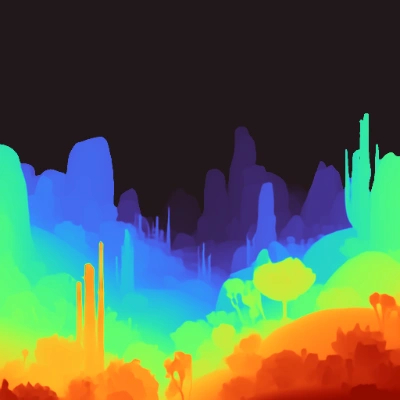
Upload a single RGB image and generate a colored depth preview and raw depth map.
 Open in Comfy Cloud
Download JSON or search "MoGe: Depth Estimation" in Template Library
**Input materials**
Upload this file to the matching `LoadImage` node:
`LoadImage` node 9 · `alien_world.png`
### 1.1 Steps to Run
1. Ensure the `LoadMoGeModel` node has loaded a MoGe checkpoint
2. Load an image in the `Load Image` node
3. Click `Queue` or use `Ctrl(cmd) + Enter` to run
4. The workflow outputs colored depth preview, raw depth preview, and a mask
Open in Comfy Cloud
Download JSON or search "MoGe: Depth Estimation" in Template Library
**Input materials**
Upload this file to the matching `LoadImage` node:
`LoadImage` node 9 · `alien_world.png`
### 1.1 Steps to Run
1. Ensure the `LoadMoGeModel` node has loaded a MoGe checkpoint
2. Load an image in the `Load Image` node
3. Click `Queue` or use `Ctrl(cmd) + Enter` to run
4. The workflow outputs colored depth preview, raw depth preview, and a mask
MoGe: Perspective Geometry Estimation

Upload an image to estimate its perspective geometry. Generate a 3D depth map and surface normals from the input, then convert to a textured GLB mesh.
 Open in Comfy Cloud
Download JSON or search "MoGe: Perspective Geometry Estimation" in Template Library
**Input materials**
Upload this file to the matching `LoadImage` node:
`LoadImage` node 9 · `modern_living_room.png`
This is **monocular geometry estimation**: occluded areas and object backsides will be missing or fragmented. Useful for quick scene prototyping, reference geometry, or visualizing depth and normals as a mesh, but not a replacement for multi-view 3D reconstruction.
### 2.1 Steps to Run
1. Ensure the `LoadMoGeModel` node has loaded a MoGe checkpoint
2. Load a perspective photo in the `Load Image` node
3. (Optional) View the OpenGL and DirectX normal previews
4. Click `Queue` or use `Ctrl(cmd) + Enter` to run
Open in Comfy Cloud
Download JSON or search "MoGe: Perspective Geometry Estimation" in Template Library
**Input materials**
Upload this file to the matching `LoadImage` node:
`LoadImage` node 9 · `modern_living_room.png`
This is **monocular geometry estimation**: occluded areas and object backsides will be missing or fragmented. Useful for quick scene prototyping, reference geometry, or visualizing depth and normals as a mesh, but not a replacement for multi-view 3D reconstruction.
### 2.1 Steps to Run
1. Ensure the `LoadMoGeModel` node has loaded a MoGe checkpoint
2. Load a perspective photo in the `Load Image` node
3. (Optional) View the OpenGL and DirectX normal previews
4. Click `Queue` or use `Ctrl(cmd) + Enter` to run
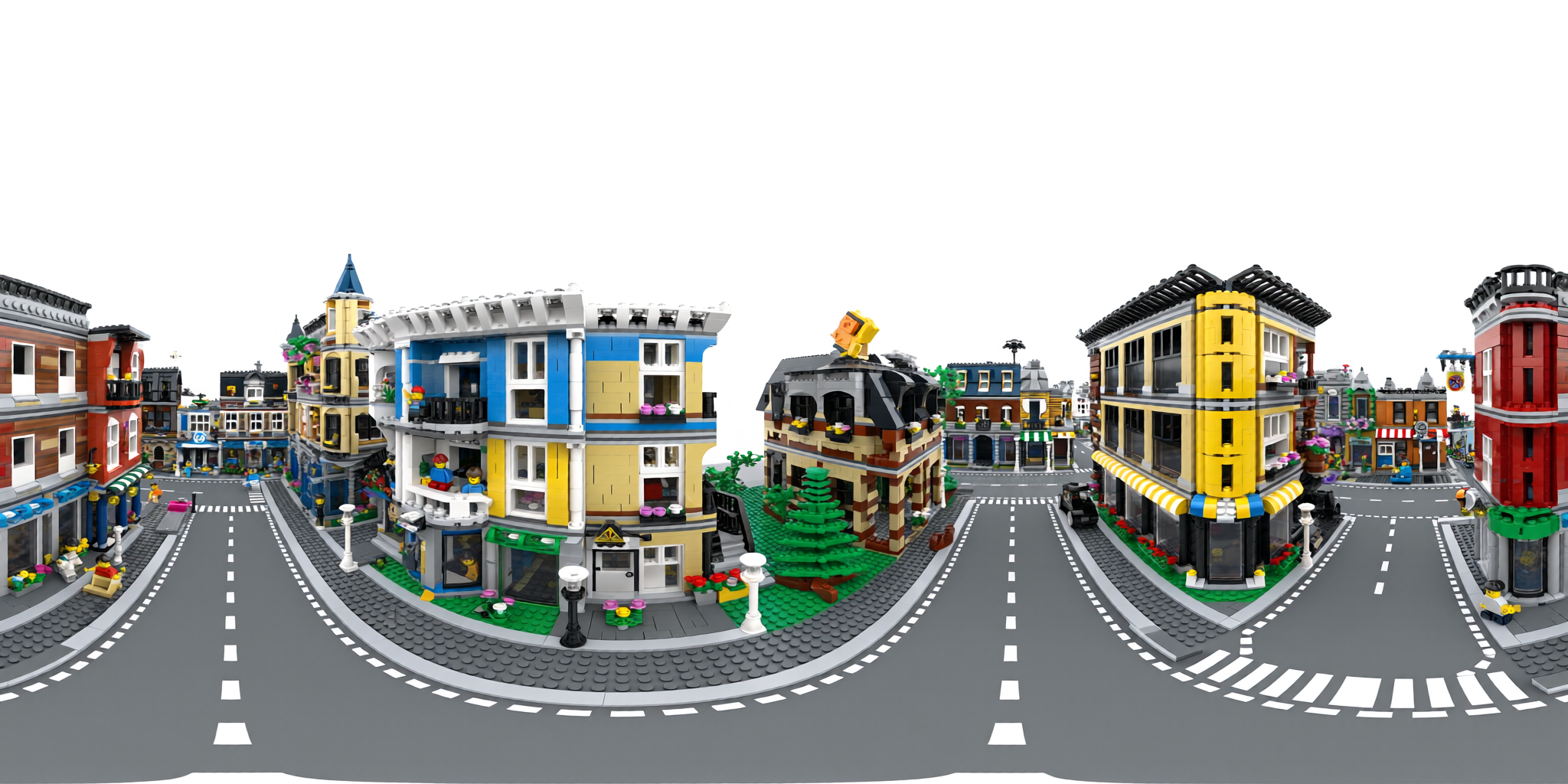
Moge: Panorama to Mesh
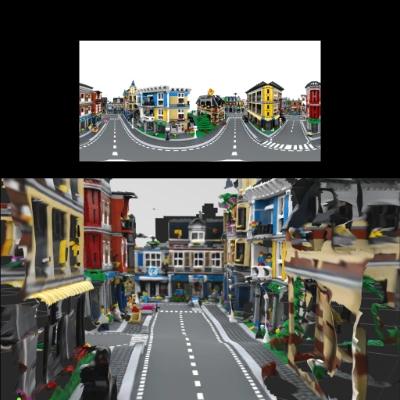
Upload an equirectangular 360° panorama image and generate a textured GLB mesh with vertex colors.
 Open in Comfy Cloud
Download JSON or search "Moge: Panorama to Mesh" in Template Library
**Input materials**
Upload this file to the matching `LoadImage` node:
`LoadImage` node 28 · `lego_street_panorama.png`
The workflow uses `MoGePanoramaInference` to split the panorama into 12 perspective views, run monocular geometry estimation on each view independently, then merge them into a single mesh.
### 3.1 Steps to Run
1. Ensure the `LoadMoGeModel` node has loaded one of the MoGe checkpoints
2. Load an equirectangular panorama image in the `Load Image` node
3. Click `Queue` or use `Ctrl(cmd) + Enter` to run
***
## Community Resources
* [MoGe GitHub (microsoft/MoGe)](https://github.com/microsoft/MoGe): Research paper and code
* [Comfy-Org/MoGe](https://huggingface.co/Comfy-Org/MoGe): Official ComfyUI model weights
Open in Comfy Cloud
Download JSON or search "Moge: Panorama to Mesh" in Template Library
**Input materials**
Upload this file to the matching `LoadImage` node:
`LoadImage` node 28 · `lego_street_panorama.png`
The workflow uses `MoGePanoramaInference` to split the panorama into 12 perspective views, run monocular geometry estimation on each view independently, then merge them into a single mesh.
### 3.1 Steps to Run
1. Ensure the `LoadMoGeModel` node has loaded one of the MoGe checkpoints
2. Load an equirectangular panorama image in the `Load Image` node
3. Click `Queue` or use `Ctrl(cmd) + Enter` to run
***
## Community Resources
* [MoGe GitHub (microsoft/MoGe)](https://github.com/microsoft/MoGe): Research paper and code
* [Comfy-Org/MoGe](https://huggingface.co/Comfy-Org/MoGe): Official ComfyUI model weights